Their companion
A spare iPhone or iPad, even an old one from a drawer. It stays in their room, on charge.
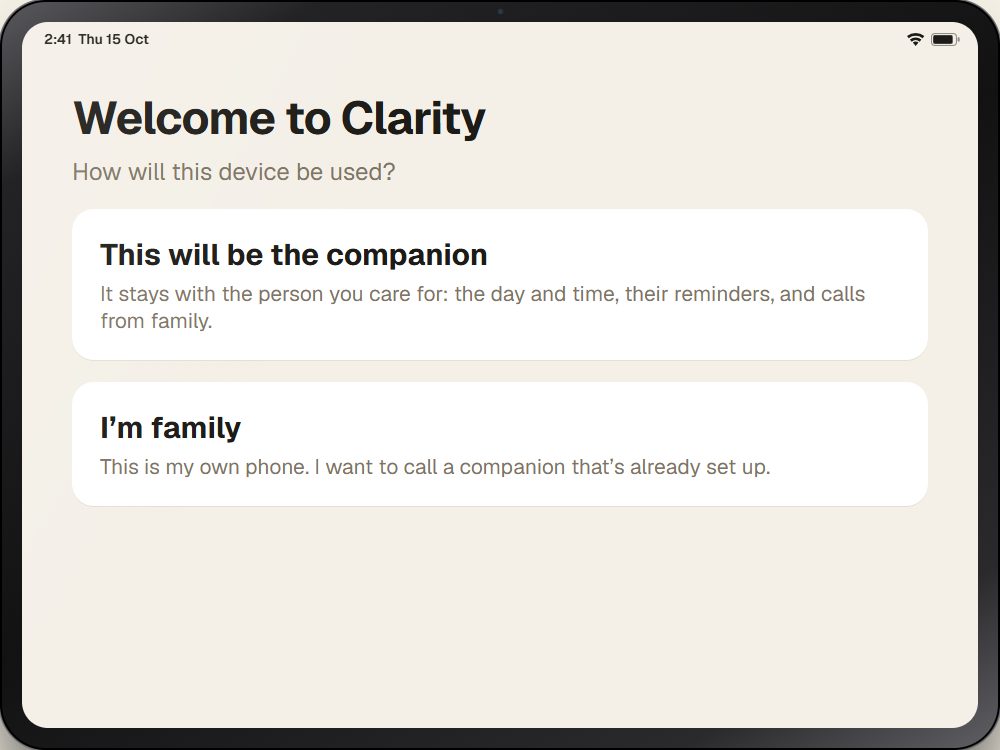
Download Clarity, open it, and tap This will be the companion.
Download on theApp Store Clarity
Download on theApp Store
Clarity
Download on theApp Store
Set-up guide
Clarity runs on two devices: a spare iPhone or iPad that stays with the person you care for, and your own iPhone. Download Clarity on both, then link them with a 6-digit code. It takes a few minutes, and you only do it once.
A spare iPhone or iPad, even an old one from a drawer. It stays in their room, on charge.
Download Clarity, open it, and tap This will be the companion.
Download on theApp StoreYour own iPhone. Every family member who wants to call or send messages uses their own phone.
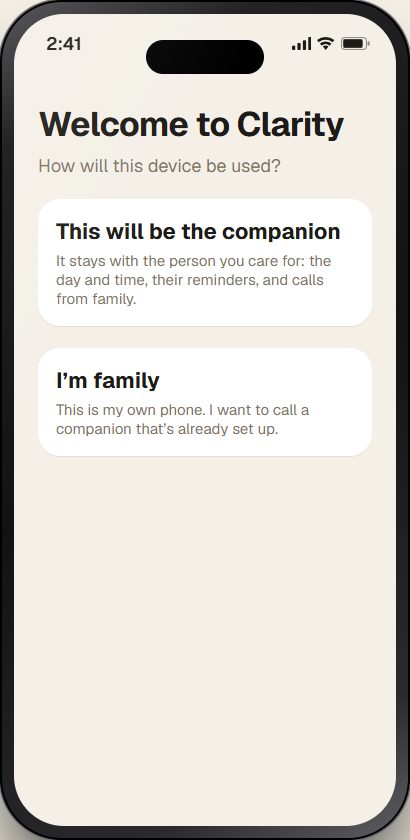
Download the same app, open it, and tap I’m family.
Download on theApp StoreThe 6-digit code on their companion links the two. Family members need an iPhone for now; Android is on the way.
Reading this on a computer? Point your iPhone’s camera at the code to open Clarity in the App Store.
Watch first
Before you start
Part 1 · On their companion
This is all you need for the day clock and reminders. No account, no sign-in.
Download Clarity from the App Store and open it. On the welcome screen, tap This will be the companion. When it asks to send notifications, tap Allow, so their reminders can chime.
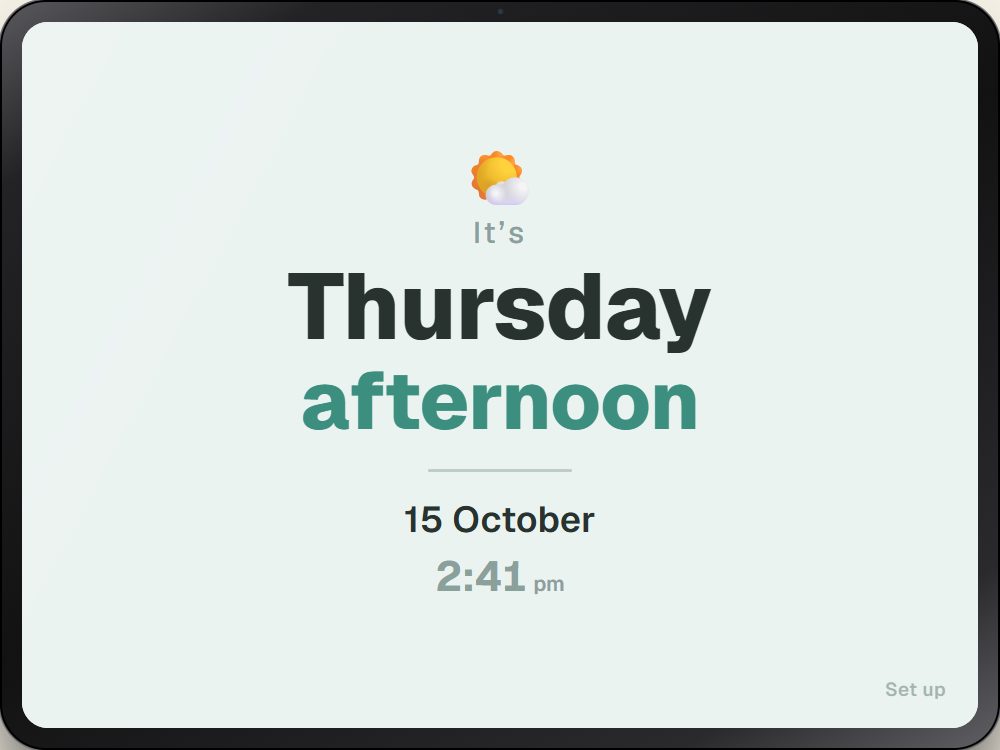
The day, the part of the day, the date and the time. Now tap Set up: the faint words in the bottom-right corner, kept small so they don’t tap it by accident.
Part 2 · Still on their companion
Do this with them, so they see what will happen and agree to it.
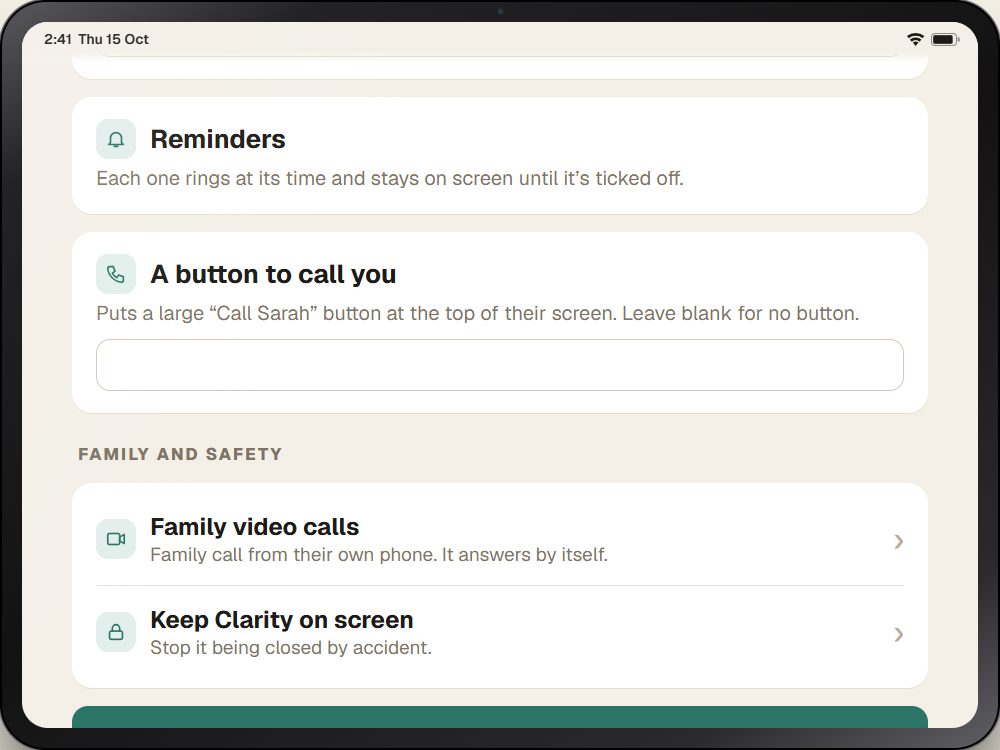
Scroll down past the message, reminders and call button to Family and safety, then tap Family video calls. Read “How a call works” together.
The name box says “Home”. Change it to something family will recognise, like “Mum’s iPad”: it’s what they see on their Call button. Tick the box to agree, then tap Turn on family calls. Tap OK for the camera, then the microphone.
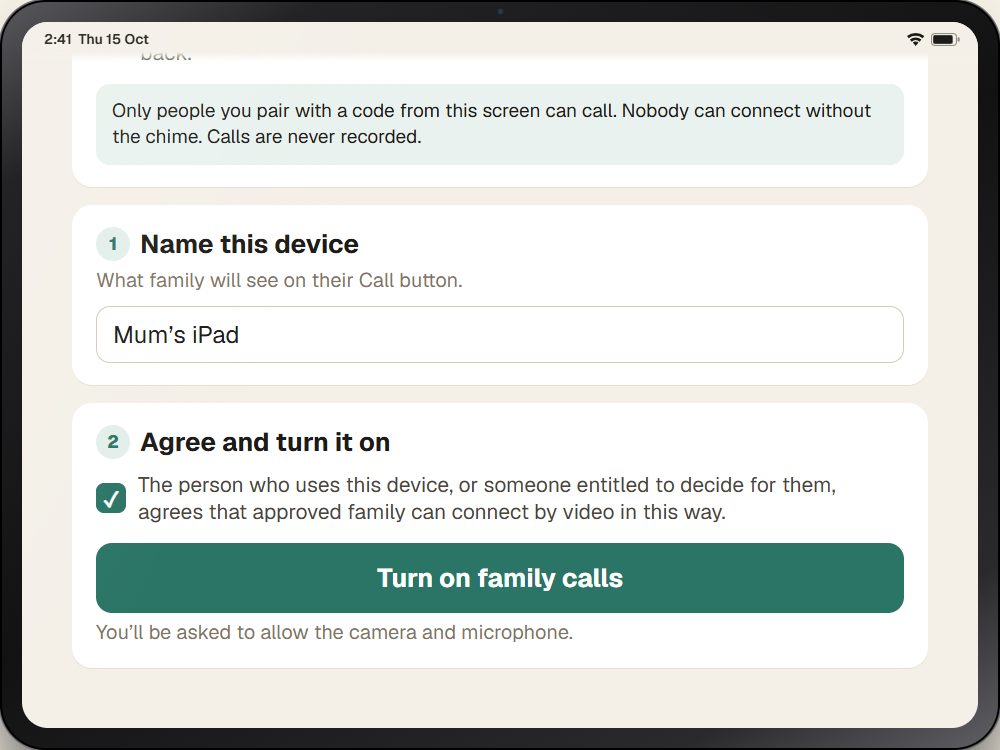
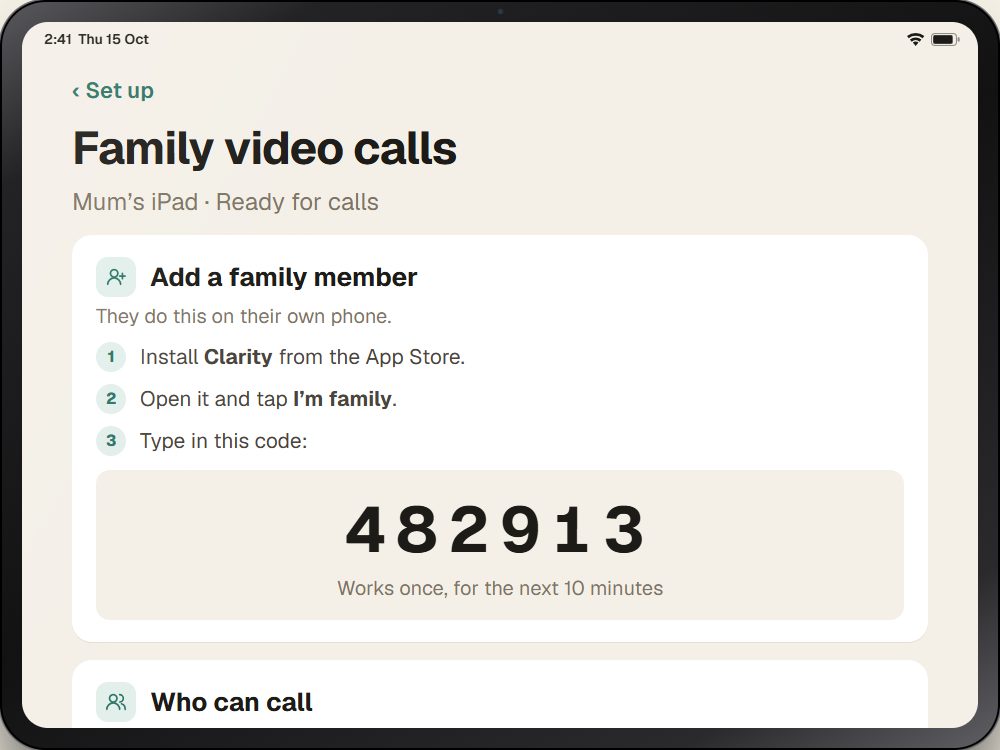
A 6-digit code appears under “Add a family member”. Leave this screen open. The code works once, for 10 minutes. If it runs out, tap Show a new code.
Part 3 · On your own iPhone
Each son, daughter or grandchild who wants to call does this once, with a fresh code each.
Download the same free app on your iPhone, open it, and tap I’m family.
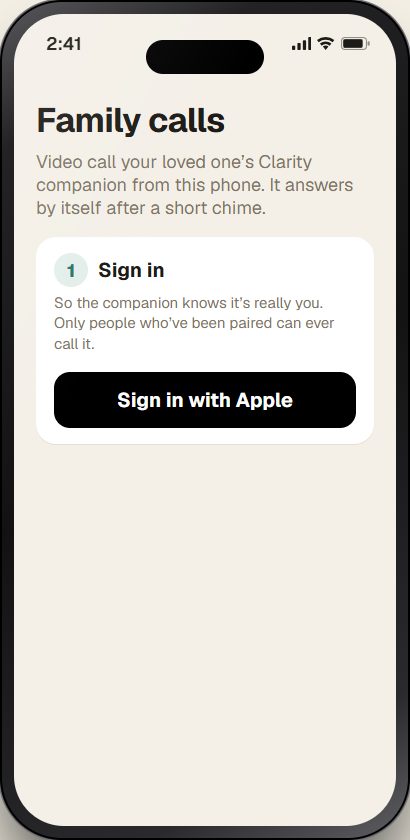
Once only. It proves to the companion that it’s really you.
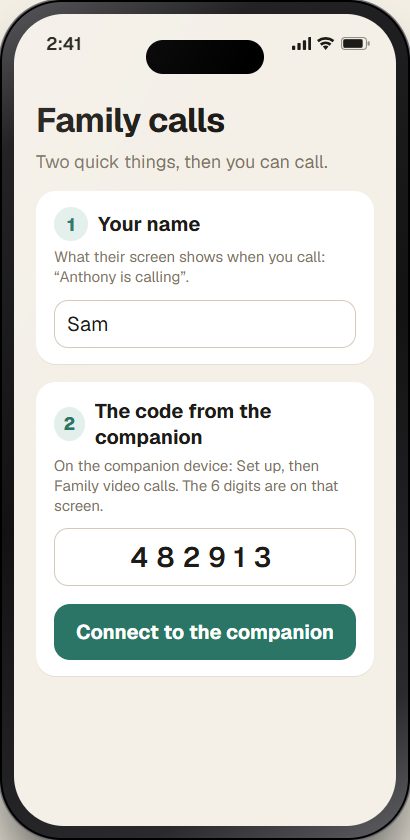
Type your name: it’s what their screen shows when you call, like “Sam is calling”. Type the 6 digits from their companion, then tap Connect to the companion. Your phone now shows a big Call button, and your name appears on the companion under “Who can call”. On the companion, tap ‹ Set up then Done to go back to their clock.
Part 4 · Try it
Tap Call Mum’s iPad. The first time, tap OK for the camera and microphone. Their companion chimes and shows “Sam is calling” for three seconds.
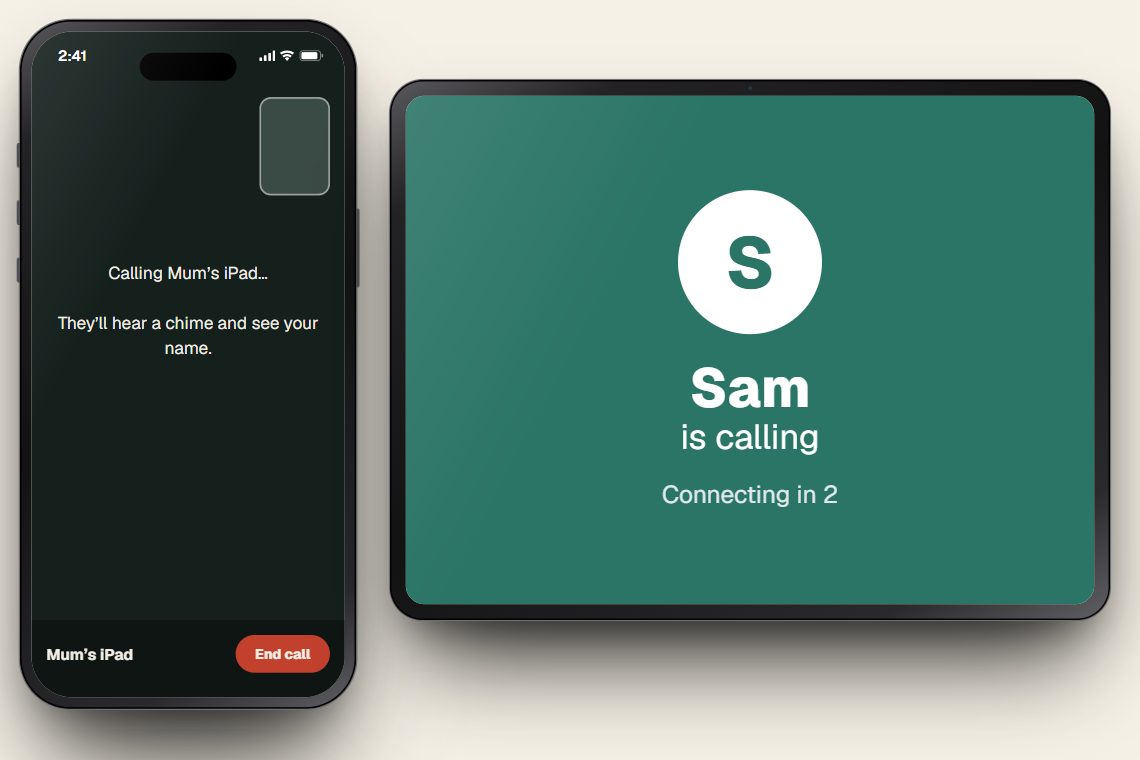
Nothing for them to press. If they can still choose for themselves, set it to ring with one big Answer button instead: on the companion, Set up then Family video calls.
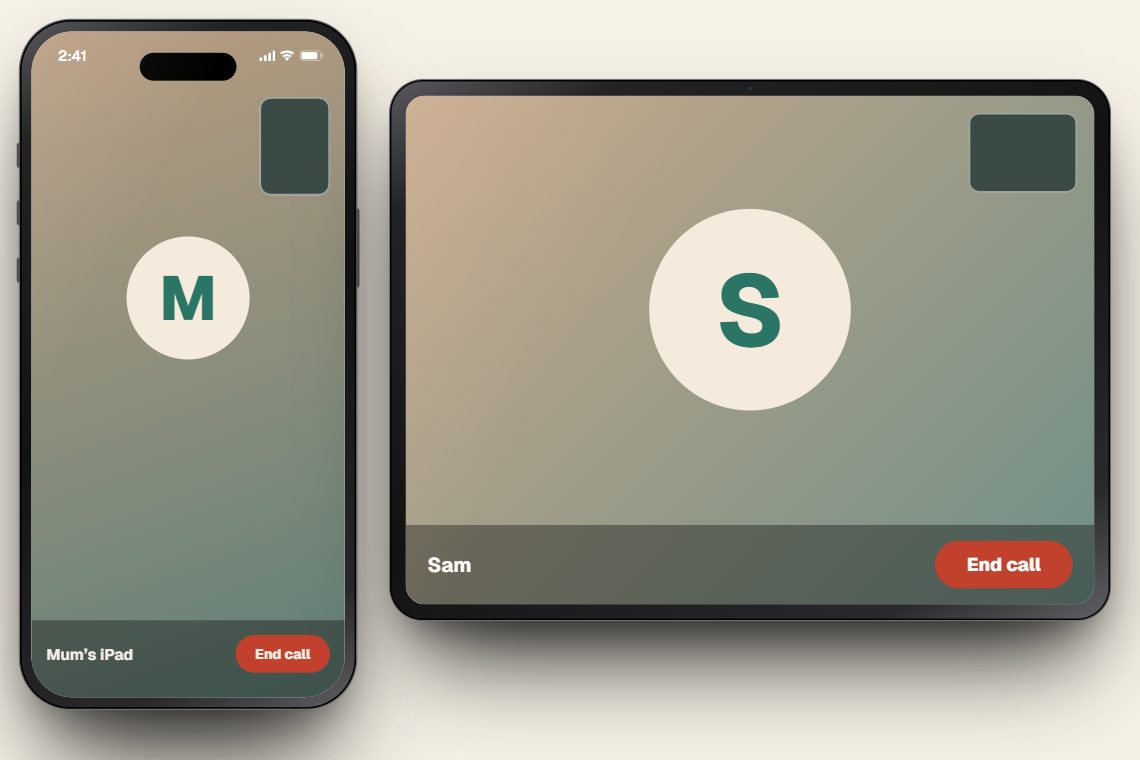
Part 5 · Between calls
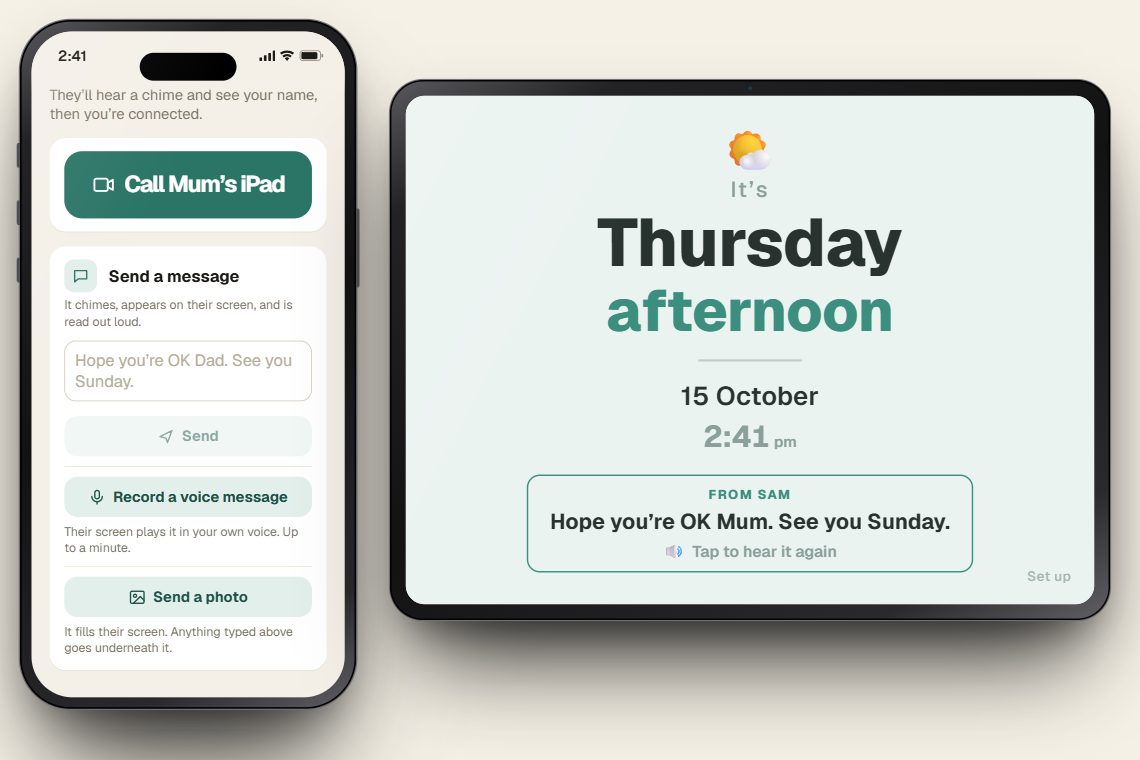
All from the same screen on your phone, under the Call button.
Type a few words and tap Send: their clock chimes, shows it in big letters and reads it out loud. Or tap Record a voice message, speak, and tap again to send: it plays in your own voice. They can tap it to hear it again.
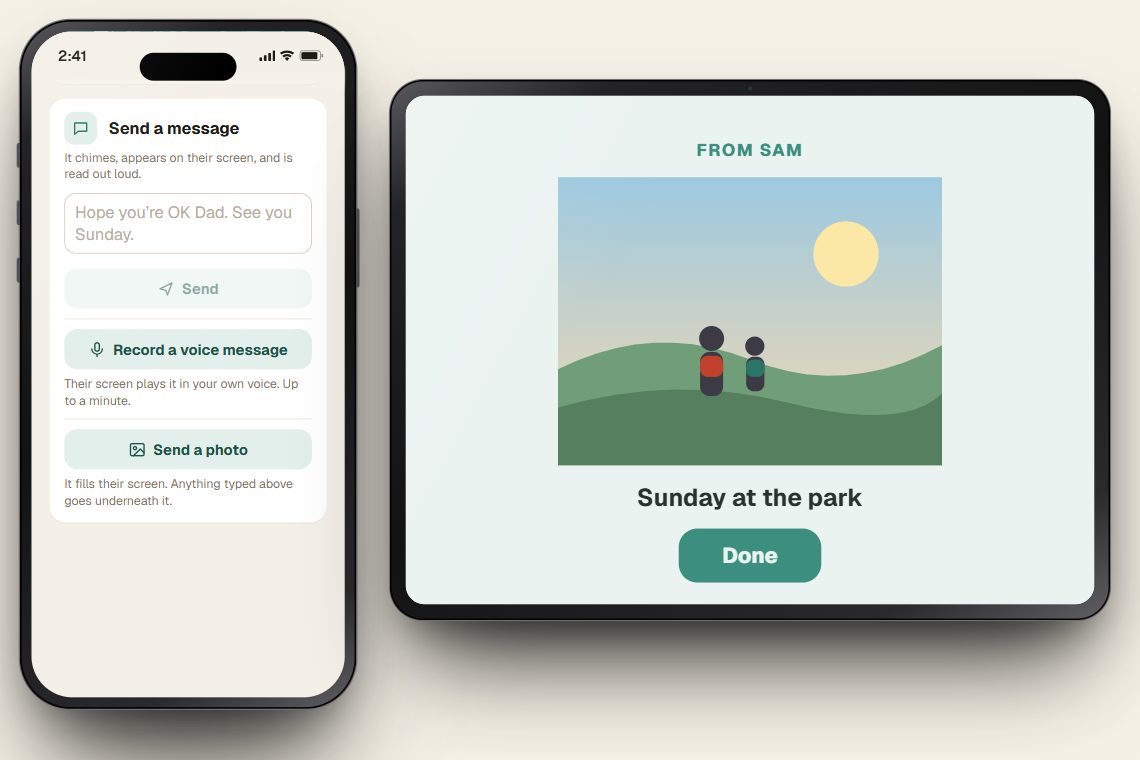
Tap Send a photo and choose one. It fills their screen, with anything you typed underneath. They tap Done to go back to the clock.
Calls and messages arrive while Clarity is open on the companion with its screen on. Clarity keeps the screen awake; just leave it on charge.
So it can’t be closed by accident. On the companion: Set up, then Keep Clarity on screen for a two-minute guide.
If something isn’t working
Each code works once, for 10 minutes. On the companion, tap “Show a new code” and type the new one straight away.
Clarity must be open on the companion with its screen on, and on Wi-Fi. If the companion was restarted, open Clarity on it again.
A companion takes one call at a time. Try again when they’ve finished.
Yes. Each family member installs Clarity on their own iPhone, chooses “I’m family”, and links with their own fresh code from the companion.
Not yet: family members need an iPhone for now. An Android version is planned.
On the companion: Set up, Family video calls. The list of who can call is there, and anyone can be removed with one tap.